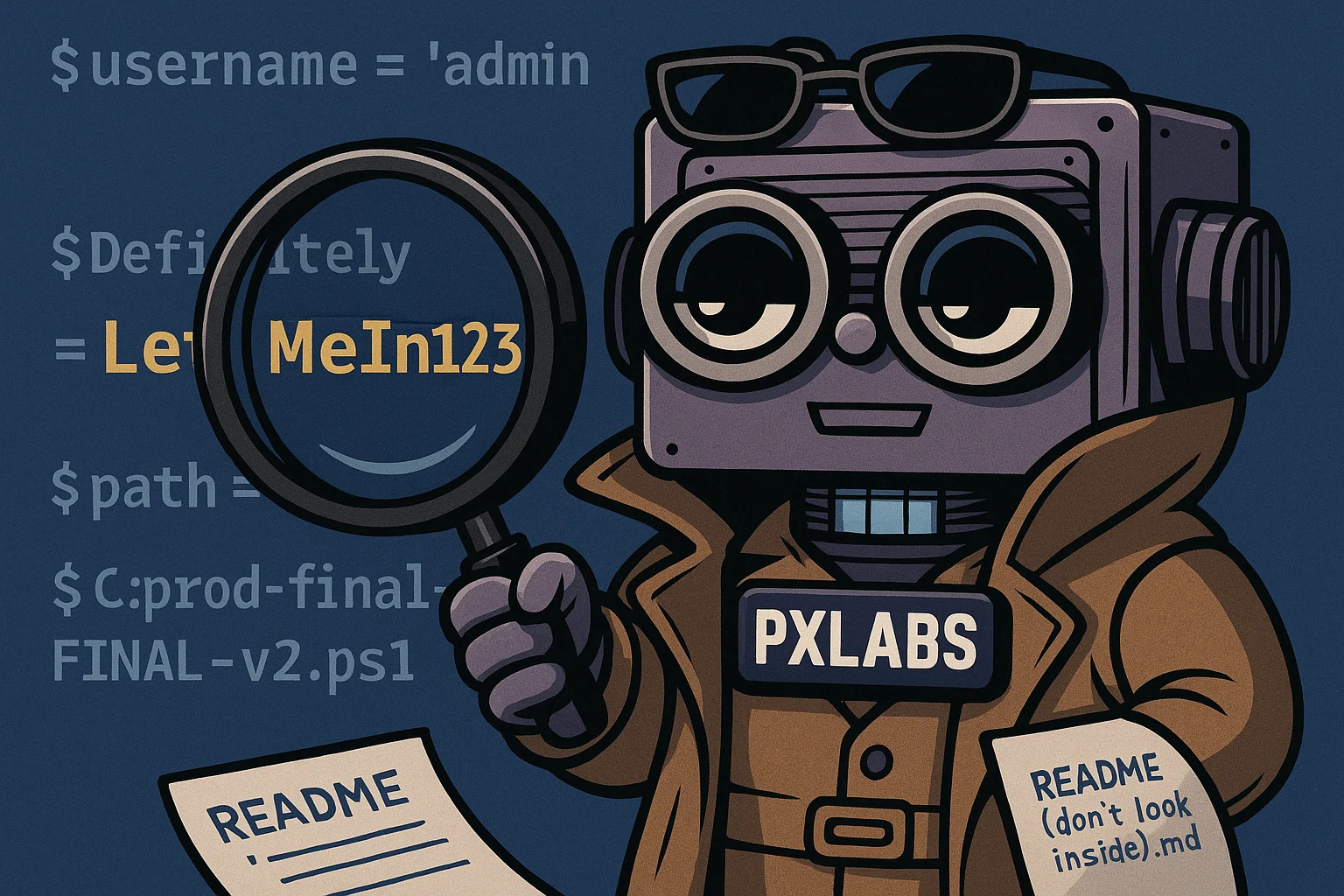
“Just for now.”
Those three words have exposed more credentials than most attackers ever could. Whether it’s stashing a password in a PowerShell script, passing it as a scheduled task argument, or writing it to the registry for convenience, admins and automation pros have all been there.
But in today’s threat landscape, those shortcuts aren’t just sloppy, they’re a security risk waiting to be exploited. Plaintext credentials don’t belong in your scripts, your tasks, or your registry keys. In this post, we’ll walk through the most common places secrets get accidentally left behind, and how to find them. Then in our next post we’ll offer better (and more secure) alternatives.
The Hall of Shame: Where Secrets Go to Die
1. Registry Entries
The Windows registry is often used to store configuration data, but too many scripts end up storing plaintext credentials there.
Set-ItemProperty -Path "HKCU:\Software\MyApp" -Name "Password" -Value "SuperSecret123"Anyone with local access can read that value with a simple Get-ItemProperty. If you’re using the registry to persist secrets, you’re not protecting anything.
2. Scheduled Task Arguments
Creating a scheduled task that runs a PowerShell script is common but too often, the credentials are passed in as arguments.
schtasks /create /tn "BackupJob" /tr "powershell.exe -File backup.ps1 -username admin -password SuperSecret123" /sc dailyThe plaintext password ends up embedded in the task XML and visible to any user who queries it:
schtasks /query /tn "BackupJob" /v /fo listWorse, tools like Event Viewer or third-party monitoring can pick it up in logs.
3. Local Files and Scripts
Saving secrets to disk seems harmless at first. You might even give the file a sneaky name like creds.txt.bak or config.ps1.
$password = "Winter2025!"But it only takes one backup job or careless commit to a public Git repo, and it’s out in the wild. Even if the file never leaves the machine, it’s still an easy find for anyone who knows where to look.
4. PowerShell Profiles and History
We’ve all used $profile to load handy functions or common variables. But if you’re persisting credentials or tokens there, think twice.
Also risky: typing sensitive commands directly into a console. PowerShell history files like ConsoleHost_history.txt are easily readable and don’t discriminate. If you typed it, it’s probably in there.
$cred = Get-Credential
$Global:MyPassword = $cred.GetNetworkCredential().PasswordThis stays in memory and may linger longer than you think.
Slightly Better (But Still Risky)
SecureStrings and Export-Clixml
This is the classic move:
$cred = Get-Credential
$cred | Export-Clixml -Path "$env:APPDATA\MyCreds.xml"This stores a “protected” credential object to disk. It only works for the same user on the same machine. If someone grabs the file and your profile, they can still load it without your password.
It’s better than plaintext, but not foolproof.
Environment Variables
Storing secrets in environment variables is popular in CI/CD pipelines and scripts:
$token = $env:MY_SECRET_TOKENBut environment variables are inherited by child processes. They can also be dumped with a simple Get-ChildItem Env:. If you go this route, keep the scope tight and clear them when done.
Spot and Clean Your Mess
Want to know where secrets might already be hiding?
- Search your scripts:
Select-String -Path *.ps1 -Pattern "password|token|key"- Inspect the registry for suspicious values:
Get-ChildItem -Recurse HKCU:\ | Get-ItemProperty | Where-Object { $_ -match "pass" }- Review scheduled task XML files
- Check PowerShell profiles and history
There are also tools like TruffleHog or Microsoft’s own Credential Scanner that can help identify common patterns.
Automate the Hunt: Find-PlainTextSecrets
Manually searching for secrets is tedious and error prone. Especially when your environment has hundreds (or thousands) of scripts, config files, or automation artifacts. That’s where Find-PlainTextSecrets comes in.
This PowerShell function scans files (or entire directories) for patterns that resemble hardcoded secrets: passwords, tokens, API keys, bearer headers, and more. It’s designed to flag potential exposures hiding in plain sight.
🔍 How it works:
Find-PlainTextSecrets -Path .\scripts -RecurseBy default, it scans all files under the specified path and highlights lines with possible secrets using a library of regex patterns. You can narrow your scan using -Include and -Exclude:
# Scan only .json and .env files
Find-PlainTextSecrets -Path .\config -Include '*.json','*.env' -Recurse

# Exclude backup files
Find-PlainTextSecrets -Path .\ -Exclude '*.bak','*template*' -RecurseIt highlights suspicious lines directly in the console, colorizing the matched portions so they’re easy to review and remediate.
If you’re sharing systems or repos, this is a quick way to make sure you’re not unintentionally leaking secrets before someone else finds them.
👉 Download the function
Grab the latest version of Find-PlainTextSecrets.ps1 from this Gist:
🔗 https://gist.github.com/phriendx/7284255d95ae6a2233624592a3b94c07
What’s Next: Doing Secrets Right Better
In this post, we focused on finding the secrets you already left behind. But spotting bad practices is just half the battle.
In the next post, we’ll walk through safer ways to store and use secrets in scripts and automation workflows, from Windows Credential Manager and certificate stores to Azure Key Vault, GitHub Actions secrets, and even protected vaults that play nice with PowerShell. We’ll explore when to use which, and how to cleanly refactor your plaintext-prone code.
🧽 You can’t mop up a leaked secret, but you can write code that never spills in the first place.